> ## Documentation Index
> Fetch the complete documentation index at: https://docs.useresona.com/llms.txt
> Use this file to discover all available pages before exploring further.
# Save from Mobile
> Save links from any app on your phone
# Save from Mobile
Save links to Resona from any app on your iPhone or Android device by emailing them to your personal save address.
## How It Works
Every Resona account has a unique email address like `save-xK7mP2nQ@useresona.com`. When you email a URL to this address, it's automatically saved to your library.
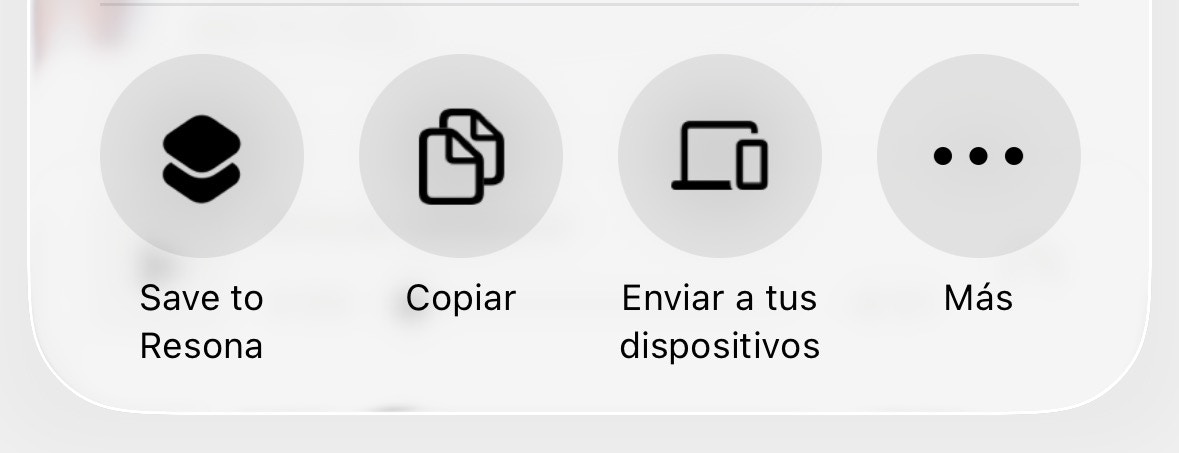
On iPhone, you can set up an iOS Shortcut that does this with one tap from the Share menu.
## iPhone/iPad Setup
 Go to **Settings** → **Save from mobile** and copy your personal save address
[Download the iOS Shortcut](https://www.icloud.com/shortcuts/0862ae2378c74985b99072c9fe0a9ff2) or tap **Get iOS Shortcut** in Settings
When prompted during installation, paste your save address
Share any link and select "Save to Resona" from the Share menu
Requires iOS 15 or later for the Shortcut to send emails without confirmation prompts.
### Adding to Share Sheet Favorites
For faster access, pin the Shortcut to your Share Sheet:
1. Open any app and tap **Share**
2. Scroll to the end and tap **Edit Actions**
3. Find "Save to Resona" and tap the **+** button
4. Drag it to your preferred position
5. Tap **Done**
## Android Setup
Visit app.useresona.com in Chrome, tap menu (⋮) → "Install app"
Share any link from any app → select "Save to Resona"
Works with Chrome, Edge, Brave, and other Chromium-based browsers.
### Alternative: Email
If you prefer not to install the app, you can still save links by emailing them to your save address:
1. Copy the link you want to save
2. Email it to your save address (found in Settings)
3. The article appears in your library within seconds
## Managing Your Save Address
Your save address is unique to your account. You can find it in **Settings** → **Save from mobile**.
| Action | How |
| -------------- | --------------------------- |
| View address | Settings → Save from mobile |
| Copy address | Click the Copy button |
| Change address | Click "Regenerate address" |
If you regenerate your address, the old one stops working immediately. You'll need to update your iOS Shortcut with the new address.
## FAQ
Apple doesn't allow web apps to register as share targets. The Shortcut sends an email behind the scenes, giving you the same quick-save experience with one tap.
Your old address stops working immediately. You'll need to reinstall the Shortcut and enter your new address during setup.
iOS 15 introduced the ability for Shortcuts to send emails without showing a confirmation dialog, making the save action feel instant.
Yes! Forward newsletters to your save address and Resona will save the content directly. See [Forward Emails](/features/forward-emails) for details.
Any email app works for manually saving links. The iOS Shortcut uses the default Mail app.
Go to **Settings** → **Save from mobile** and copy your personal save address
[Download the iOS Shortcut](https://www.icloud.com/shortcuts/0862ae2378c74985b99072c9fe0a9ff2) or tap **Get iOS Shortcut** in Settings
When prompted during installation, paste your save address
Share any link and select "Save to Resona" from the Share menu
Requires iOS 15 or later for the Shortcut to send emails without confirmation prompts.
### Adding to Share Sheet Favorites
For faster access, pin the Shortcut to your Share Sheet:
1. Open any app and tap **Share**
2. Scroll to the end and tap **Edit Actions**
3. Find "Save to Resona" and tap the **+** button
4. Drag it to your preferred position
5. Tap **Done**
## Android Setup
Visit app.useresona.com in Chrome, tap menu (⋮) → "Install app"
Share any link from any app → select "Save to Resona"
Works with Chrome, Edge, Brave, and other Chromium-based browsers.
### Alternative: Email
If you prefer not to install the app, you can still save links by emailing them to your save address:
1. Copy the link you want to save
2. Email it to your save address (found in Settings)
3. The article appears in your library within seconds
## Managing Your Save Address
Your save address is unique to your account. You can find it in **Settings** → **Save from mobile**.
| Action | How |
| -------------- | --------------------------- |
| View address | Settings → Save from mobile |
| Copy address | Click the Copy button |
| Change address | Click "Regenerate address" |
If you regenerate your address, the old one stops working immediately. You'll need to update your iOS Shortcut with the new address.
## FAQ
Apple doesn't allow web apps to register as share targets. The Shortcut sends an email behind the scenes, giving you the same quick-save experience with one tap.
Your old address stops working immediately. You'll need to reinstall the Shortcut and enter your new address during setup.
iOS 15 introduced the ability for Shortcuts to send emails without showing a confirmation dialog, making the save action feel instant.
Yes! Forward newsletters to your save address and Resona will save the content directly. See [Forward Emails](/features/forward-emails) for details.
Any email app works for manually saving links. The iOS Shortcut uses the default Mail app.