

Save from Mobile
Save links to Resona from any app on your iPhone or Android device by emailing them to your personal save address.How It Works
Every Resona account has a unique email address likesave-xK7mP2nQ@useresona.com. When you email a URL to this address, it’s automatically saved to your library.
On iPhone, you can set up an iOS Shortcut that does this with one tap from the Share menu.
iPhone/iPad Setup
1
Get your save address
Go to Settings → Save from mobile and copy your personal save address
2
Install the Shortcut
Download the iOS Shortcut or tap Get iOS Shortcut in Settings
3
Configure the Shortcut
When prompted during installation, paste your save address
4
Start saving
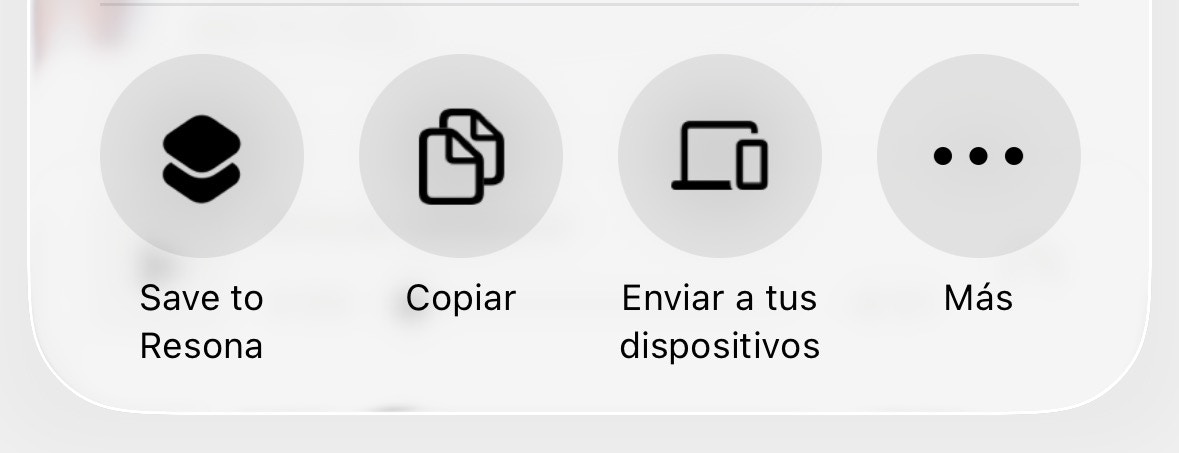
Share any link and select “Save to Resona” from the Share menu
Requires iOS 15 or later for the Shortcut to send emails without confirmation prompts.
Adding to Share Sheet Favorites
For faster access, pin the Shortcut to your Share Sheet:- Open any app and tap Share
- Scroll to the end and tap Edit Actions
- Find “Save to Resona” and tap the + button
- Drag it to your preferred position
- Tap Done
Android Setup
1
Install Resona
Visit app.useresona.com in Chrome, tap menu (⋮) → “Install app”
2
Start saving
Share any link from any app → select “Save to Resona”
Works with Chrome, Edge, Brave, and other Chromium-based browsers.
Alternative: Email
If you prefer not to install the app, you can still save links by emailing them to your save address:- Copy the link you want to save
- Email it to your save address (found in Settings)
- The article appears in your library within seconds
Managing Your Save Address
Your save address is unique to your account. You can find it in Settings → Save from mobile.FAQ
Why do I need a Shortcut on iOS?
Why do I need a Shortcut on iOS?
Apple doesn’t allow web apps to register as share targets. The Shortcut sends an email behind the scenes, giving you the same quick-save experience with one tap.
What if I change my save address?
What if I change my save address?
Your old address stops working immediately. You’ll need to reinstall the Shortcut and enter your new address during setup.
Why iOS 15+?
Why iOS 15+?
iOS 15 introduced the ability for Shortcuts to send emails without showing a confirmation dialog, making the save action feel instant.
What email apps work?
What email apps work?
Any email app works for manually saving links. The iOS Shortcut uses the default Mail app.